Showing posts with label Database Search Tools. Show all posts

Thursday, February 16, 2017

Full Text Finder and Citation Finder

Tarleton's Dick Smith library subscribes to more than 200 databases, which provide access to a multitude of publications. Determining which database contains the particular source you are looking for can be a daunting task. Fortunately we have Full Text Finder and Citation Finder, powerful tools that can find and link you to specific periodicals or specific articles within our myriad of databases.

Full Text Finder

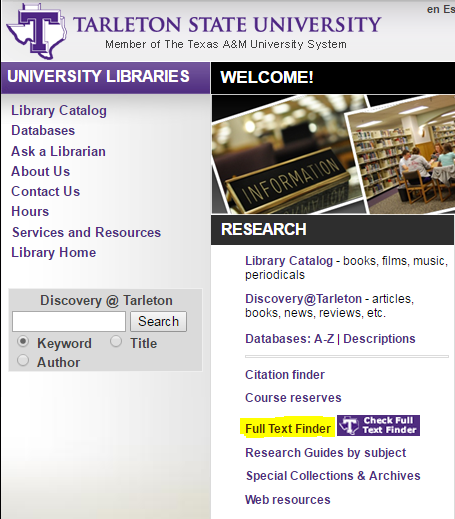
To use Full Text Finder first go to the library's webpage: http://www.tarleton.edu/library/. Then click on the Full Text Finder link highlighted in the screenshot below:
Full Text Finder link highlighted in yellow. 

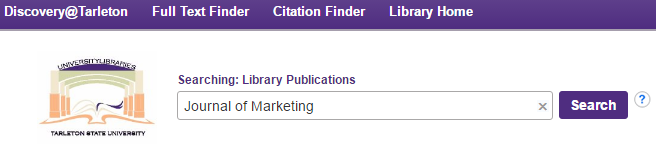
After you click the Full Text Finder link you will come to a search screen where you can type in the name of a particular periodical title (journal, magazine, newspaper). Below the search box there are links that allow you to browse for periodicals by title or by discipline.
Searching for the Journal of Marketing
Your search results will let you know which databases have the periodical  you are looking for, and the date range of coverage provided in each database. There is also a search box, which allows you to search within that periodical.
Search results. 

Citation Finder 

Another useful tool is Citation Finder. This is helpful when you are trying to track down a specific article. For example, you are reading a source and you want to find an article that is listed in that source's references.
Example citation.
After reading an article I found the citation above, and decided to use Citation Finder to see if this article was available through a Tarleton library database. To use Citation Finder first go to the library's website: http://www.tarleton.edu/library/. Then click on the Citation Finder link highlighted in the screenshot below.
Citation Finder link highlighted in yellow.

After you click the Citation Finder link you will come to a search screen where you will need to input the article's bibliographic information. That information is found in the citation (see example above).
Input as much information as you can. If there is something you don't know, then leave it blank. The more information you provide, the more likely you will be linked to the correct source. At a minimum you should provide the journal title, article title, date, and author's last name. 
Fortunately, the article I'm looking for is available in the JSTOR database. Clicking on the link in the screenshot below took me directly to the article.
Link to full text of the article in the JSTOR database. 
If you need assistance using Full Text Finder or Citation Finder then contact the library at 254-968-1898 or reference@tarleton.edu.


Monday, October 13, 2014

Learn to Speak the Language of Your Database!

Have you ever tried to convey a message to someone who does not speak the same language as you?  How well did that go?  Did you have to use body language?

Using a database or a database search tool (such as Discovery or Proquest) requires that you communicate with it in a language that it understands otherwise you might not get the results you are looking for, especially since you can’t resort to body language to make the database understand! 

So...how can you learn to speak the language of your 

database search tool? 

 First, don't use the database or database search tool like you use Google! You can’t use sentences or questions and get usable results. Here's a sample research question: What's the differences between IFRS and FASB? (These are different styles of accounting practices, for you non-accounting majors.) 

     Let’s see what happens if we treat the database search tool as if it were Google and simply enter this question:
     This came up with NO RESULTS at all!  Let's figure out a better way to search using a database or a database search tool!!  

                     So....let's speak the language of our database search tool!

     Begin by writing out your research question, then looking closely to determine the key concepts. Looking for the nouns might help you find those key concepts.

Look at example 1: 
We want to know the main differences between IFRS and FASB.   
Look for the key concepts which are: 1) IFRS, 2) FASB, and 3) differences.

Try entering a single key concept into separate boxes in our database search tool, Discovery.

This search gives us 135 results! Look through the list to find the items that meet your needs. In order to come up with additional items, try coming up with different words that mean close to the same thing.

             So...let's try other ways we speak to the database search tool! 

Example 2: 
Finding the differences might involve comparing IFRS and FASB. 
 Our new research question becomes: I want to compare IFRS and FASB. 
What are the key concepts here? 1) IFRS, 2) FASB, and 3) comparison.

Think about the key concept "comparison" with the root word "compare".  If we do a root word search, results such as "compare", "comparison", "comparability", etc. will show up.  To execute this search we can add an asterisk at the end of the root word, which would look like this: compar*.
Let's try entering our key concepts into our database search tool, Discovery.
This search strategy results in 157 hits.  Looking through these results may give you additional items to use in your research.

Now you have begun to learn to speak the language of a 

database search tool!

 For more information about creating searches, go to the library home page and find "Research Help", then go to "Research Strategies".  Look down the page to locate the hyperlink: Create Effective Searches.  Clicking on this hyperlink here will open up a short power point lesson on other search strategies.

Good luck learning to speak the language of 

databases and database search tools!